SHD.gg Intel · Companion App for WindowsBeta
Your Division 2 companion
A free app that runs next to the game. It tracks your loot and XP, reads your build and puts it all on your stream.
- Free
- No account needed
- Only watches your screen
Session tracking
Track every run
Press Start (or CtrlAltT in the game), play, press Stop. The app reads the game's messages and your XP bar and writes down what happened.
- Every pickup as it drops, with the time: exotics and named items in their rarity colours, gear set and high-end pieces, and what went to junk.
- Keys and materials: Red Moon Keys and other keys, crafting materials, ammo and caches, added up as you go, with the game's own icons.
- XP and XP per hour. Level-ups and huge boosted rewards count in full, and you see where your XP comes from: headshot kills, activity rewards and more.
- Announcements and objectives: places captured and cleared, convoys, “Moon Cultists Defeated”…
- Only your drops in a group. Chat shows the whole group's loot. The app works out your agent name (or reads it from your Division 2 saves folder in Documents, if you say yes) and leaves your teammates' drops out.
- Starts with the game, if you want: a session starts when the game opens and is saved when it closes.
Names match shd.gg's spelling, and nothing is counted twice.
- 1. Game closedYour last session and current build.
- 2. Game openA big Start button.
- 3. TrackingXP and rate, items, keys, a live feed of drops and a chart.
- 4. Session overA recap with your gain, rate, best drop and top XP source. Share recap copies it as a picture for Discord.
Sessions
Know what a run was worth
Every session is kept with its time, XP gained and per hour, a chart and every event. All sessions adds them up.
- All sessions adds up the last 7 days, 30 days or all time: XP, XP per hour and time played.
- How often exotics and named items drop, and your records: best XP per hour, most exotics, longest session.
- XP per hour session by session, and where your XP comes from.
- Every drop of each item, searchable. Click any of them to open its session.
- Signed in, every session is saved to your shd.gg account and opens on My sessions. Same history on every PC.
Build reader · New
Your build in one keypress
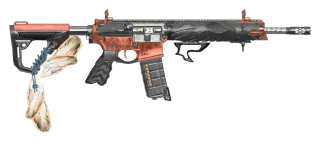
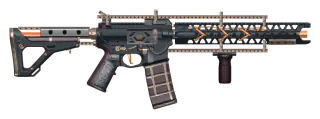
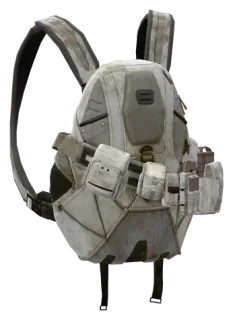
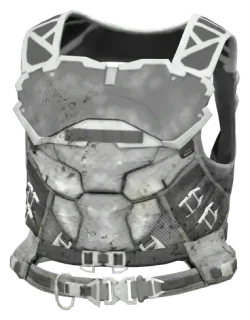
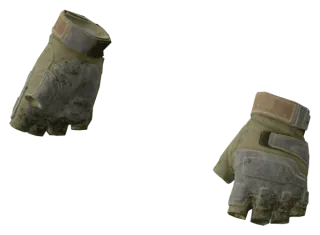
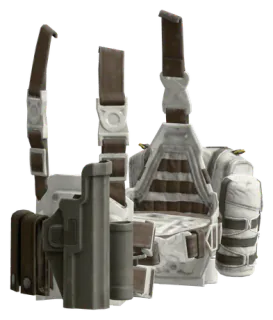
Open your inventory in the game and press CtrlAltB. The app recognises your weapons, gear and skills from their pictures and shows the build. A screenshot works too.
- Open in build planner sends the build to the build planner. Nothing is saved until you save it there.
- Keep my active loadout up to date: your active loadout on shd.gg (and on Twitch, if you stream) follows the build you wear, on every read or only with its own shortcut (CtrlAltL).
- Works without an account too. The planner and active loadout need one.
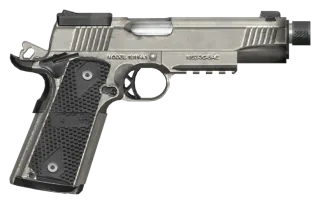
Good to know: the game in English, or in French (beta). Your inventory gives the items; press the shortcut on an item's details to add its rolls and talent, or on a skill's details for its variant. Look-alike pieces (the 1911 pistols) come back marked “check this”.

Overlays
On your screen and your stream
A small card over the game while you play, and the same card for your viewers.
- In-game overlay: session time, XP and per hour, items, keys and exotics, and your latest drops for a few seconds. Exotics glow.
- Your mouse goes straight through it, and it only shows while you track and the game is in front. Pick a corner or side and a size, or the Compact strip that only pops up exotic and named drops.
- Stream overlay: the same overlay as a Browser source for OBS or Streamlabs, on a see-through background.
- Click Edit to drag it into place on a picture of your stream and choose its size, layout (Full, Compact, drops only) and how many drops it shows. Changes show in OBS right away.
- Hide the in-game overlay from screen recordings, so it doesn't show twice.
Your PC
Works on your setup
An ultrawide screen, an older PC or a second monitor: the app adapts to it.
Finds your HUD by itself
Pickups, chat and XP are found on screen automatically, so ultrawide screens and other HUD sizes work without setup. The feed follows when chat is hidden, and so does XP when combat moves it.
Any monitor
Play borderless or windowed, on whichever screen you like.
Light on slower PCs
The game gets priority for your CPU, and the app skips work when the picture hasn't changed, in menus or on pause.
Turn off what you don't use
Tracking, the overlays and the Build reader are each a switch in Settings → Features. A feature that's off does nothing in the background.
Stays out of the way
It lives in the tray and can start with Windows. Change any shortcut you like; only one copy runs at a time.
Updates itself
Updates download in the background: restart when it says so, or it installs when you quit. Want changes first? Pick the Experimental channel, and go back to Stable any time.
Anti-cheat
Safe to use
SHD.gg Intel only looks at the game's picture, the same way OBS window capture or Discord screen share does.
- It never reads the game's memory and never changes the game's files. The one thing it reads from disk is your agent name, from the Division 2 saves folder in Documents, and only if you say yes.
- It never injects into the game or draws inside it. The overlay is a separate window on top.
- It never presses keys or clicks for you. Shortcuts are standard Windows shortcuts.
- The program isn't packed or hidden.
It's still a third-party tool, and Ubisoft's terms have the final word. SHD Intel is an unofficial fan project, not affiliated with or endorsed by Ubisoft.
Setup
Get started in a minute
Four steps, and no account needed.
- 1
Download and run
Run the installer. The app is called SHD.gg Intel on your PC, and it keeps itself up to date from then on.
- 2
Sign in, or don't
Sign in with a code you approve on shd.gg/device, so you never type your password into the app. Or continue without an account.
- 3
Choose your features
Tracking, the overlays and the Build reader each have a switch. Turn off what you don't need.
- 4
Play
Run the game borderless or windowed, then press Start, or let a session start with the game.
Roadmap · Beta
What's next
What we're building next, roughly in order. The app is in beta and has only been tested on a few PCs, so tell us what works on yours and what you'd like first: your feedback decides the order.
- 1
More languages
The readers and game messages work with the game in English, and in French in beta. Other languages are next.
- 2
Drop alerts
A sound or a notification when an exotic, a named item or an item you picked drops.
- 3
Vendor alerts in the app
At the weekly reset (Tuesday 08:00 UTC), the tray tells you “Vendor X has 2 items you're watching”, from your vendor alerts on shd.gg.
- 4
Sessions split into activities
Countdown, Summit or a mission, with XP per hour and drops compared between them.
- 5
Full builds from the Build reader
Talents and attributes too, so your active loadout on shd.gg and Twitch is a complete build, not just a list of items.
- 6
All-time stats on shd.gg
The All sessions view on the website, over every session you've saved.
- 7
Smaller things
Shortcuts that work with a controller, a warning when the game's picture comes back black (HDR, exclusive fullscreen) with what to change, and a countdown to the weekly reset on Home.
Questions
Good to know
The questions players ask us most.
Do I need an account?
Is it allowed? Is it safe?
Does it work in my language?
Does it work on ultrawide, or in fullscreen?
Does it count my teammates' drops?
How do I put it on my stream?
What does the app send?
Only you can see your sessions. Here's everything the app sends, and where it goes:
- Sessions
- Your PC. Signed in, also your shd.gg account, where only you can see them.
- Builds
- Stay on your PC unless you open them in the planner or turn on active loadout.
- Crash reports and the app's notes on what it was doing
- Sent to the team automatically, with your shd.gg name. Never your password, screenshots or Windows user name.
- Performance numbers while tracking
- How long reading takes, how much memory the app uses, event counts. Numbers only, every few minutes. No screen content and no item or agent names.
- Which features you turn on or off
- Sent, so we know what players use.
- Feedback form
- Your message, plus your email and today's app log only if you add them.
- Screenshots
- Only saved on your PC, and only if you turn on “Record my sessions to help fix reading problems”.
Is the app finished?
How do I report a bug or suggest a feature?
Is this an official Ubisoft tool?
Requirements
What you need
- Windows 10 (version 2004 or later) or Windows 11
- The Division 2 on PC, in borderless or windowed mode (exclusive fullscreen can show up black)
- The game in English, or in French (beta)
- Windows' text recognition for that language, which most Windows installs in it already have. If it's missing, the app says how to add it.
- An shd.gg account is optional
Your next run, tracked.
Free, no account needed, and it updates itself.